 Dual Camera & Teleprompter
How to record yourself and your screen at the same time on Android
Explaining something on a phone is easier when people see both the screen and you. Dual Camera & Teleprompter records the whole phone screen with your face from the front camera in a small window and your voice – in one video, without a computer.
- Tap SCREEN under the camera picture.
- Tap the red button and allow screen recording.
- Do what you want to show – your face stays on top.
- Stop with the red button on the small window.
Step by step
Switch to SCREEN mode
Under the camera picture, tap SCREEN. The app tells you that the whole screen will be recorded.
Turn on "Do not disturb" first, so messages and notifications don't appear in your video.
Start recording
Tap the red button and allow screen recording when Android asks. After 3-2-1 the recording starts and you can leave the app.
Show and explain
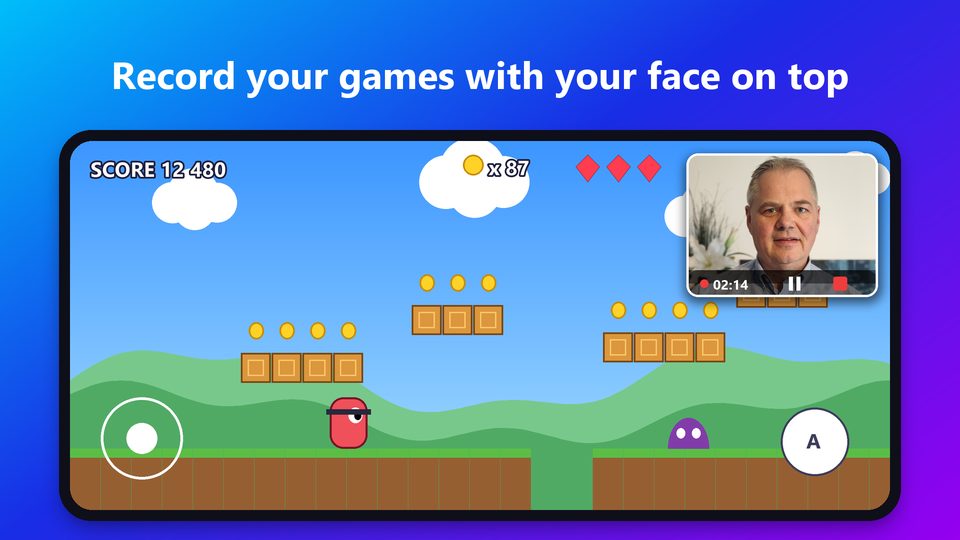
Open the app, website or document you want to show and talk as you go. Your face stays in a small window on top – drag it to a corner where it doesn't cover the important part.
Pause or stop
The small window shows the recording time and has pause and stop buttons. Pause when you need to prepare the next step, so viewers don't have to wait.
Trim and share
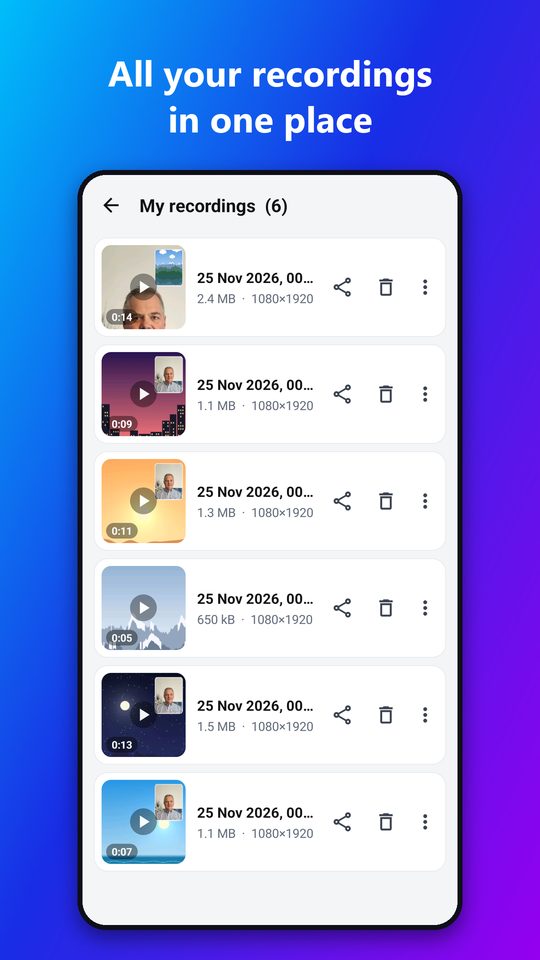
Open the app and tap the thumbnail at the bottom left. Trim the start and end with Trim and share the video by e-mail, WhatsApp or YouTube.
What people use it for
- App tutorialsShow step by step how an app or a phone setting works.
- PresentationsGo through slides or a document and explain it with your face on screen.
- Help for family and friendsRecord how to do something on the phone and send it instead of explaining on the phone.
- Bug reportsShow the problem and describe it at the same time.
Questions
Is my voice recorded?
Yes, your voice from the microphone, together with the phone sound (unless an app blocks sound recording).
Can I move my face window?
Yes. Drag it anywhere on the screen while recording.
Are notifications recorded too?
Everything on the screen is recorded, including notifications. Turn on "Do not disturb" before you start.
Do I need a computer?
No. Everything happens on your phone, and the video is saved on your phone.
Dual Camera & Teleprompter
Both cameras in one video, with a built-in teleprompter and screen recording.
Coming soon to Google Play