 Dual Camera & Teleprompter
How to read a script while recording a video on your phone
When you read from a sheet of paper or a second screen, your eyes leave the camera and viewers notice. Dual Camera & Teleprompter shows your text right under the front camera, so you can read and still look into the lens. The text is only on your screen, never in the video.
- Tap Teleprompter on the camera screen.
- Paste or type your text and tap Done.
- Set the speed with − and +.
- Tap the red button. The text scrolls while you record.
Step by step
Open the text editor
On the camera screen, tap Teleprompter or the page icon on the bar above the buttons. The text editor opens.
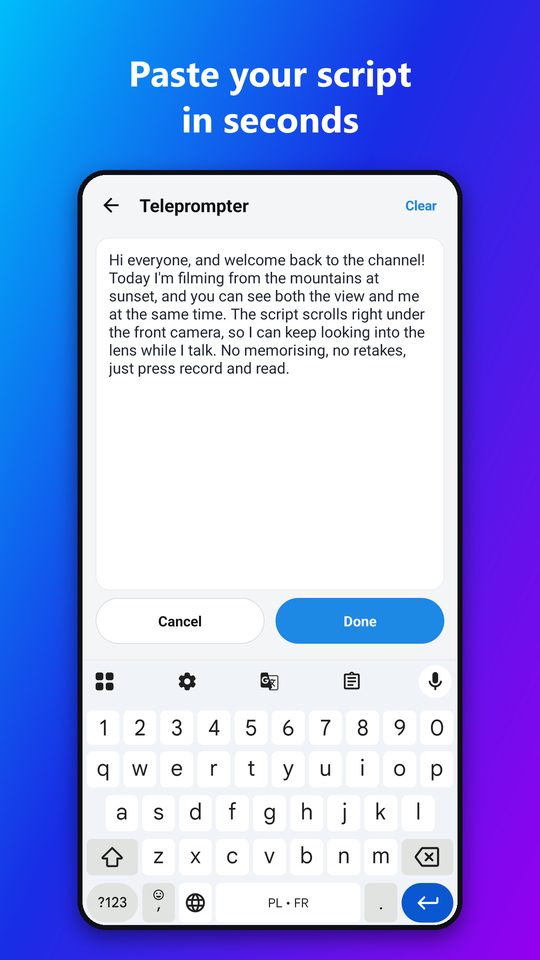
Paste or type your script
Paste the text you want to read (for example from your notes or an e-mail) or type it yourself, then tap Done. The text appears on the screen right under the front camera.
Short lines read best. Write the way you speak, and break long sentences in two.
Set the speed and width
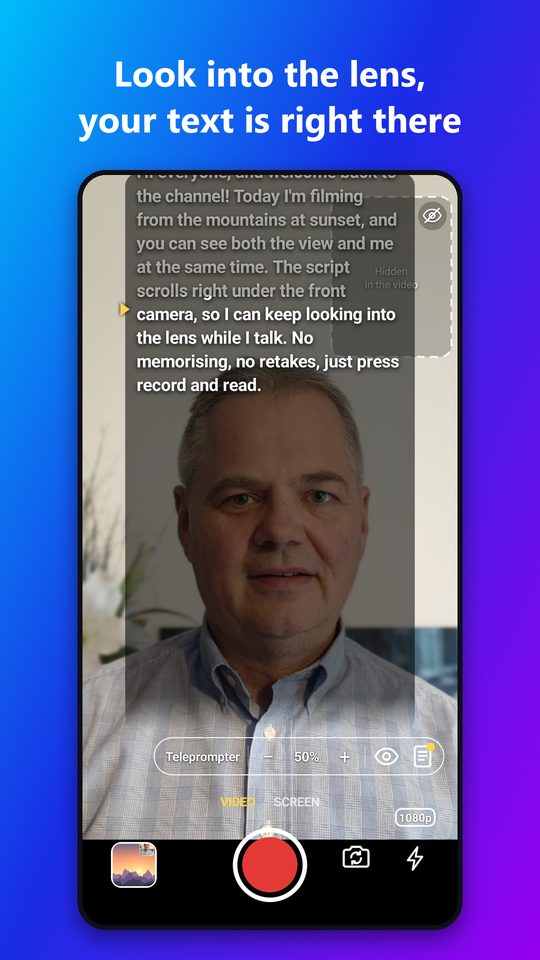
Use − and + on the teleprompter bar to make the text slower or faster (10–100%).
Before recording you can make the text column narrower or wider with two fingers – a narrow column keeps your eyes closer to the lens.
Record and read
Tap the red button. The text starts scrolling and you just read. Tap the text to pause it if you need a breath, and tap again to continue. When you stop recording, the text goes back to where you started, ready for the next take.
The eye on the bar hides the text for a moment without deleting it.
Watch, trim and share
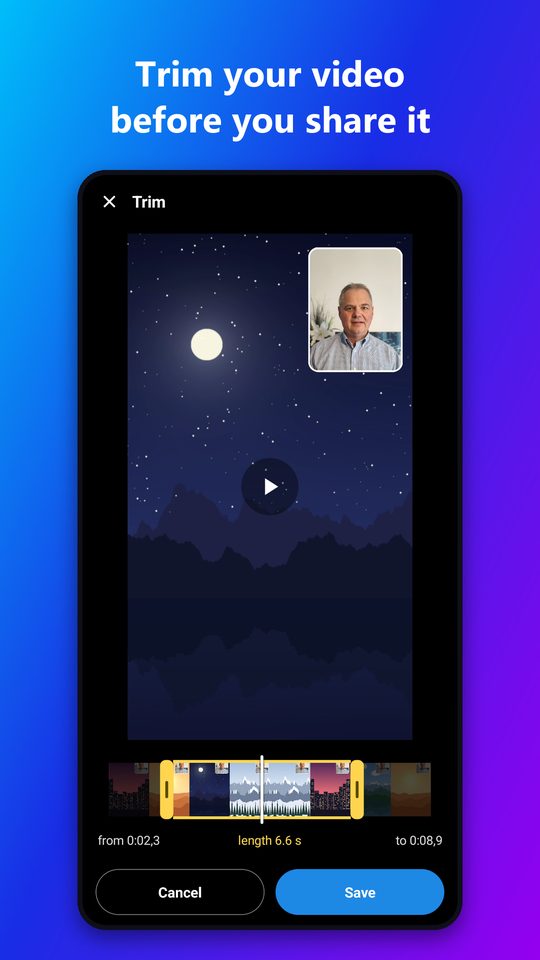
Tap the thumbnail at the bottom left, watch your video, cut the start and end with Trim and share it. The teleprompter text is not in the video.
What people use it for
- Videos for social mediaShorts, Reels and TikToks without forgetting what you wanted to say.
- Online coursesExplain a topic step by step, without notes in your hand.
- Business messagesProduct presentations, offers and updates for clients.
- Wishes and speechesBirthday wishes, toasts or a short speech recorded in one take.
Questions
Is the teleprompter text visible in the video?
No. The text is only on your screen. The video shows only the camera picture.
Can I use the teleprompter with both cameras?
Yes. It works with your face only, or with your face and the back camera in the small window.
How fast should the text scroll?
Start at a slow speed and go faster after a test take. Most people speak about 120–150 words per minute.
Does the teleprompter work when recording the screen?
No, the teleprompter is for camera videos (VIDEO mode). In SCREEN mode you record your screen with your face on top.

Dual Camera & Teleprompter
Both cameras in one video, with a built-in teleprompter and screen recording.
Coming soon to Google Play