 Dual Camera & Teleprompter
How to record reaction videos on Android
A reaction video needs two things in one picture: what you watch and your face. Usually that means a computer and editing. With Dual Camera & Teleprompter your phone does both at once – there are two ways, depending on what you react to.
- Reacting to a video on your phone: tap SCREEN, press record and play the video.
- Reacting to something in front of you (TV, an unboxing, an event): stay in VIDEO and turn on both cameras.
- Your face stays in the small window.
- Stop, trim and share.
Step by step
Choose how you react
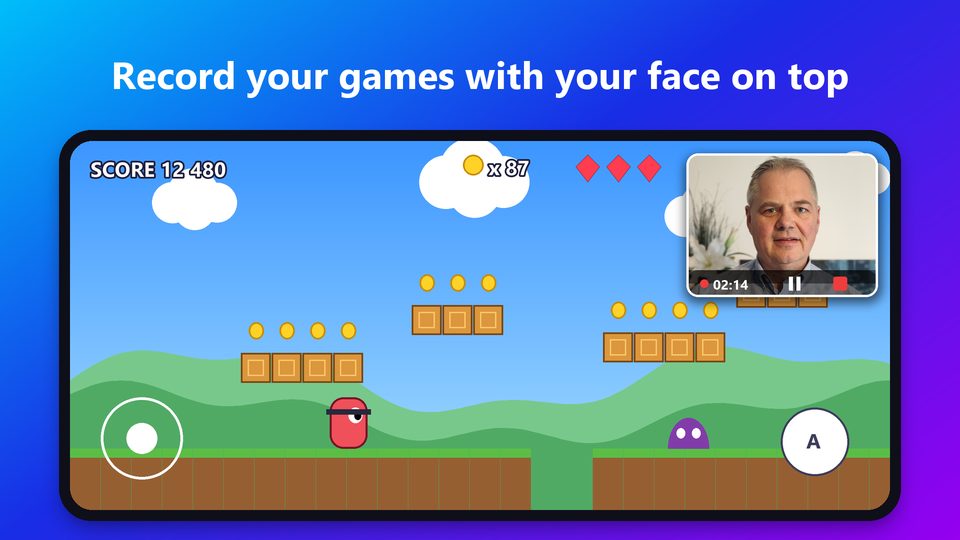
To a video or app on your phone – use SCREEN mode. The whole phone screen is recorded, with your face on top.
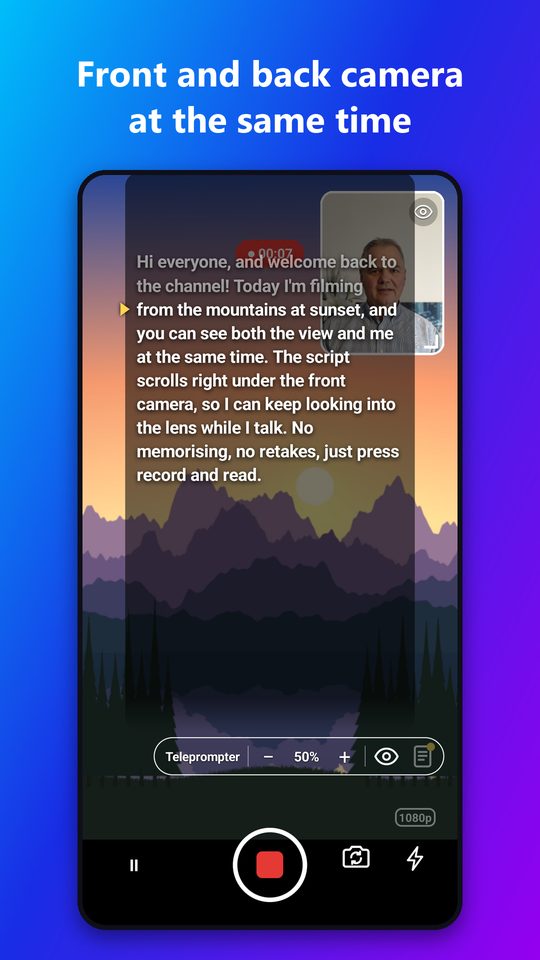
To something in front of you – a TV, a gift you open, a concert – use VIDEO mode with both cameras: the back camera films it and the front camera films you.
SCREEN: record your phone with your face
Tap SCREEN, then the red button, allow screen recording and wait for 3-2-1. Open the video you want to react to and play it. Your face from the front camera stays in a small window that you can move.
Some apps block sound recording. Then only your voice is recorded – check with a short test first.
VIDEO: both cameras at once
In VIDEO mode tap the eye in the dashed frame to turn on the second camera, and use ⇄ to choose which camera is big. Usually the back camera is big (what you watch) and your face is small – or the other way round if your reaction matters more.
React
Tap the red button and react naturally. Everything is saved in one video – no need to sync two recordings afterwards.
Hold the phone steady or use a small tripod, so your face stays in the frame.
Trim and share
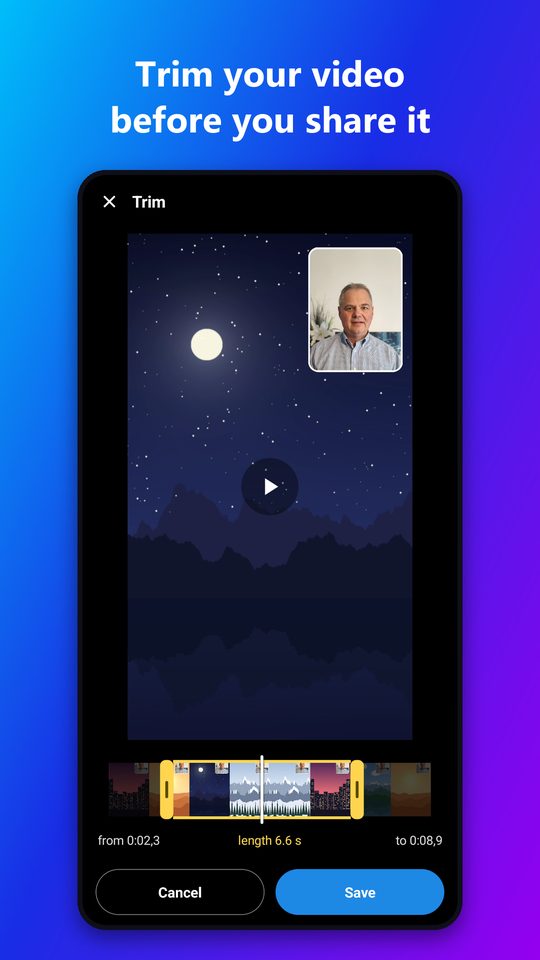
Open your recordings with the thumbnail at the bottom left, cut the start and end with Trim and share the video to YouTube, TikTok or Instagram.
What people use it for
- Reacting to videosTrailers, music videos, funny clips – with your face and comments.
- UnboxingThe back camera shows the box, the front camera shows your surprise.
- Sports and TVYour reactions while watching the match or a show.
- Gifts and surprisesFilm the moment and your own face at the same time.
Questions
Can I react to YouTube or TikTok videos?
You can record them with SCREEN mode. Remember that the original video belongs to its author – add your own commentary and follow the rules of the platform where you post.
Is the sound of the video I react to recorded?
In SCREEN mode the phone sound is recorded together with your voice, unless the app blocks it. In VIDEO mode the microphone records everything you hear in the room.
Do I need to edit the video afterwards?
No. Your face and the content are already together in one video. You can trim the start and end in the app.
Is the app free?
Yes. No ads, no account and no internet access.

Dual Camera & Teleprompter
Both cameras in one video, with a built-in teleprompter and screen recording.
Coming soon to Google Play